
How to Render React Components in WordPress Gutenberg
If you're trying to render React components in Gutenberg, the fastest path is usually:
Don't rebuild your React components as custom blocks.
Instead, treat Gutenberg as the editor experience and use a workflow that:
- keeps the block UI native to WordPress
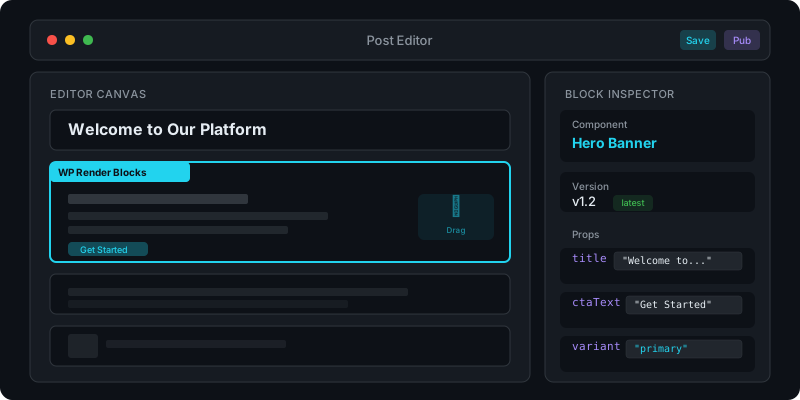
- maps block attributes → component props
- outputs indexable HTML via SSR when needed
What problem are we solving?
Gutenberg is great for assembling pages, but many teams already have (or generate) React UI:
- design systems
- landing page sections
- comparison tables
- FAQ blocks
- pricing grids
Rebuilding each one as a custom Gutenberg block is expensive and slows iteration, especially when the UI is AI-generated and changes frequently.
What are the two main ways to use React in Gutenberg?
1) Custom Gutenberg blocks per component (traditional)
You create a WordPress plugin, register blocks, manage attributes, editor UI, transforms, compatibility, etc.
This is valid, but it’s also a long-term maintenance commitment.
2) Upload React components + render as Gutenberg blocks (WP Render Blocks)
You keep your component as a component. Gutenberg becomes the configuration layer:
- editors select a component
- editors configure props
- WordPress renders output (SSR for indexable pages, CSR for non-indexed)
This is the workflow WP Render Blocks is built for.
What you need before you start
- a WordPress site where you can install plugins
- a WP Render Blocks account and a connected WordPress site
- a React component prepared for upload (ZIP)
See: Documentation
Step-by-step: render a React component in Gutenberg with WP Render Blocks
Step 1: Install the plugin and connect the site
At a high level:
- Install the WP Render Blocks plugin in WordPress (Plugins → Add New → Upload)
- Connect your WordPress site in the plugin settings
- Test the connection
For detailed setup instructions, see the plugin documentation.
Step 2: Upload a component ZIP
Upload your component ZIP in WP Render Blocks. The upload should include source files and a minimal package.json (no node_modules).
If your team uses AI tools (Lovable, V0, Cursor, Claude), this is usually just “export ZIP.”
See also: Using AI-Generated React Components in WordPress (Safely).
Step 3: Add the block in Gutenberg
In the WordPress editor:
- Add a block
- Search for “WP Render Blocks” (or your block name)
- Choose the uploaded component
Step 4: Configure props in the block sidebar
Props are how your component becomes reusable. Gutenberg stores the prop values as block attributes.
Typical examples:
title(string)items(array)showBadge(boolean)ctaUrl(string)
If you want the props model in depth, see the documentation.
Step 5: Publish and verify SSR output (for indexable pages)
For SEO-focused pages, validate the one thing that matters:
- Open the page
- View page source
- Confirm the important text exists in HTML
If it does, you’re shipping SSR output.
If you want the “why,” see: Server-Side Rendering (SSR) for WordPress: Why It Matters for SEO.
Gutenberg limitations to be aware of (and how to design around them)
Editors want predictable controls
Blocks are not raw JSON editors. If your component requires deeply nested props, you’ll want a schema approach (or constrain the prop surface).
Keep the “content” obvious
For SEO, the content should be visible in the editor and in the published HTML.
Avoid patterns where:
- content is fetched client-side during render
- text is injected only after hydration
Don’t mix “frontend-only” behavior into render
If your component uses browser-only APIs during render, it will not be SSR-safe without guards.
How this compares to custom block development
When custom blocks are still the right tool
Custom blocks can be the right call when:
- you need very WordPress-specific behaviors (block transforms, rich text, inner blocks)
- the component is deeply integrated with WordPress editor state
- you want to distribute a standalone plugin without a rendering service
When WP Render Blocks is the right tool
WP Render Blocks is a good fit when:
- you already have React components (or generate them quickly)
- you want to ship them across many sites without rebuilding each one
- you want SSR output for indexable pages
Ready to try it? Get started with WP Render Blocks.
FAQ
Can Gutenberg blocks render server-side HTML?
Yes. Gutenberg ultimately saves content that WordPress can output as HTML. The question is where the HTML comes from. SSR output is the reliable path for indexable pages.
Is this compatible with SEO plugins?
If your output is real HTML in page source, it behaves like normal WordPress content and SEO plugins can analyze it.
How do I debug a broken block render?
Start with:
- view page source (is the HTML present?)
- check whether the component is SSR-safe
- validate the props being passed
If you want the practical workflow, see: From ZIP to WordPress: Publish a React Section That’s SEO-Friendly.
Summary
Rendering React components in Gutenberg is less about “can WordPress run React?” and more about workflow:
- Gutenberg should be your editor and prop configuration layer
- SSR should be your default for indexable pages
- avoid rebuilding every component as a bespoke block when you don’t need to