
React Component ZIP Checklist for WordPress
The most common reason a React component fails after upload is not a code quality issue. It's a packaging issue: wrong file structure, missing export, browser APIs in the render path, or unnecessary dependencies inflating the bundle.
This checklist covers everything to verify before you upload.
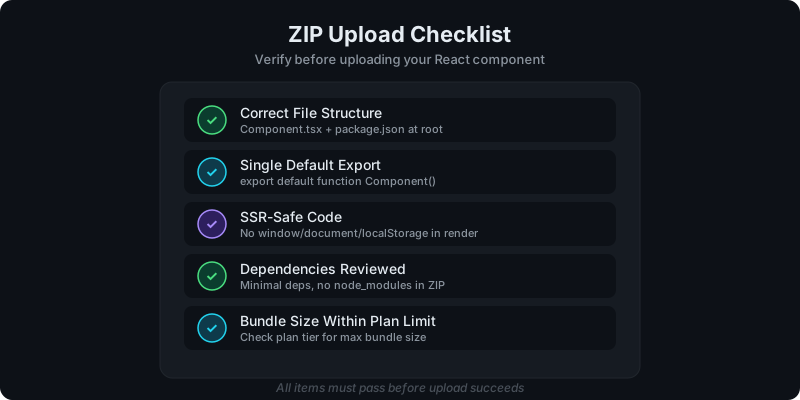
Direct answer: what does a valid component ZIP look like?
A valid ZIP contains:
- A React component file (
.tsxor.jsx) with a single default export - A
package.jsonlisting any dependencies (prefer zero) - No
node_modules, nodist/, no.envfiles
That's it. Keep it minimal.
1. File structure
Your ZIP root should look like this:
my-component/
  Component.tsx      (or .jsx)
  package.json
Common mistakes:
- Nested folders that push the component deeper (
my-component/src/components/Component.tsx). Keep it flat. - Including
node_modules/in the ZIP. The build pipeline installs dependencies frompackage.json. Shippingnode_modulesbloats the upload and can cause build conflicts. - Including build artifacts (
dist/,.next/,build/). Upload source, not output.
2. Single default export
WP Render Blocks expects exactly one default export from your component file:
// Correct
export default function PricingTable(props: PricingTableProps) {
  return <div>...</div>;
}
// Wrong: named export only
export function PricingTable(props: PricingTableProps) {
  return <div>...</div>;
}
If your AI tool generates a named export, add export default or add a default export at the bottom of the file.
3. SSR safety
SSR renders your component on a server where browser APIs don't exist. If your component accesses window, document, localStorage, or navigator during the render path, SSR will fail.
Rules:
- No browser API calls in the component body or during render
- Move browser-only logic into
useEffect(which only runs on the client) - Use guards:
if (typeof window !== 'undefined') { ... }
// SSR-safe pattern
const [mounted, setMounted] = useState(false);
useEffect(() => {
  setMounted(true);
}, []);
For the full SSR safety guide: Using AI-Generated React Components in WordPress (Safely).
4. Dependency handling
The package.json in your ZIP tells the build pipeline what to install. Keep it deliberate:
- Prefer zero dependencies. Most UI components need only React (which is provided by the build environment).
- Remove unused packages. AI tools often add libraries during iteration that aren't needed in the final component.
- Avoid large frameworks. Pulling in a full charting library or animation framework for a simple component inflates the bundle unnecessarily.
Check for common bloat: lodash (use native JS), axios (use fetch or remove network calls), moment (use Intl.DateTimeFormat).
For dependency security: Why Running User-Uploaded React Code Is Dangerous (And How We Secure It).
5. Bundle size limits
Each WP Render Blocks plan has a bundle size limit. Exceeding it means your upload or build will fail.
Keep bundles small by:
- removing unused dependencies
- avoiding
node_modulesin the ZIP - not shipping images or large assets in the component (use URLs via props instead)
- keeping the component focused on one purpose
Most well-structured components are well under the limit. If you're hitting it, the component likely includes something that shouldn't be there.
Common mistakes that cause build failures
| Mistake | Symptom | Fix |
|---|---|---|
window.innerWidth in render | SSR crash | Move to useEffect |
| No default export | Component not found | Add export default |
node_modules in ZIP | Upload too large | Remove before zipping |
Missing package.json | Build can't resolve deps | Add one at ZIP root |
.env files included | Security risk | Remove from ZIP |
Pre-upload verification
Before uploading, run through this:
- Unzip and check: does the root contain your component file and
package.json? - Search for browser APIs: grep for
window.,document.,localStorage,navigatoroutside ofuseEffect - Check the export: is there exactly one
export default? - Review
package.json: are all listed dependencies actually used? - Check file size: is the ZIP reasonable (under a few hundred KB for most components)?
For the full getting started workflow: Getting Started with WP Render Blocks.
Ready to upload? Get started with WP Render Blocks.
FAQ
Can I include CSS files in the ZIP?
Yes, but it's simpler to use Tailwind utility classes or inline styles. If you include a CSS file, make sure it's imported in your component and uses scoped class names to avoid conflicts with WordPress themes.
What TypeScript version is supported?
The build pipeline handles modern TypeScript. Use standard React + TypeScript patterns. Avoid experimental TS features that require custom compiler configuration.
Can I test SSR locally before uploading?
You can approximate it by running your component with a Node-based renderer (like renderToString from react-dom/server). If it renders without errors, it's likely SSR-safe. If it throws a window is not defined error, you have browser API usage to fix.
This checklist is part of our React + WordPress guide.
Summary
A successful component upload requires:
- clean file structure (component +
package.jsonat root) - a single default export
- no browser APIs in the render path
- minimal, reviewed dependencies
- bundle size within your plan limit
Get these right and the build pipeline handles the rest.