
Getting Started with WP Render Blocks: From Signup to Live Component in 5 Minutes
You have a React component. You want it live on a WordPress page, rendered as HTML for SEO, inside the Gutenberg editor. No PHP. No custom block boilerplate.
Here is exactly how to do that with WP Render Blocks.
Direct answer
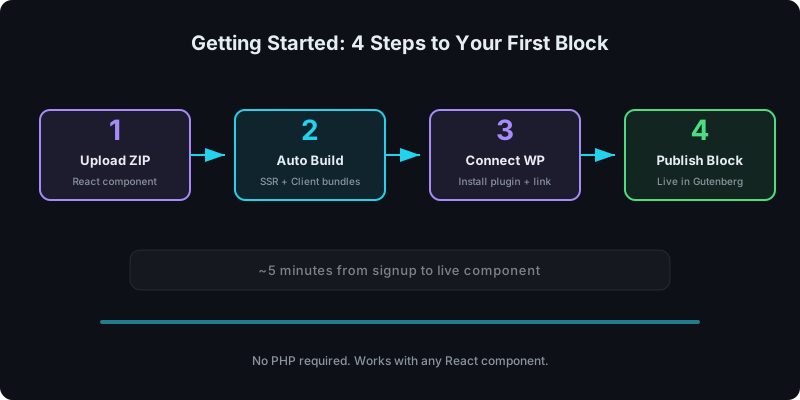
Four steps: (1) create an account and upload your React component as a ZIP, (2) the platform builds SSR and client bundles automatically, (3) install the WordPress plugin and connect your site, (4) add the block in Gutenberg and publish. The whole process takes about 5 minutes.
Prerequisites
Before you start, you need:
- A React component (a single
.tsxor.jsxfile with a default export) - A
package.jsonlisting any dependencies - A WordPress site where you can install plugins
- A WP Render Blocks account (free tier works for your first component)
If you are building components with AI tools like Lovable or V0, the output already meets these requirements in most cases.
Step 1: Create your account and upload a ZIP
Sign up at wprenderblocks.com. Once in the dashboard, click New Component and upload a ZIP file containing your component source.
Your ZIP should include:
index.tsx(orindex.jsx) with a default exportpackage.jsonwith dependencies listed- Any additional files the component imports
Do not include node_modules/ or build artifacts. Keep the ZIP clean and minimal. For a detailed pre-flight check, see the React Component ZIP Checklist.
For the full upload workflow, see: From ZIP to WordPress: Publish a React Section That's SEO-Friendly.
Step 2: Wait for the automatic build
After upload, WP Render Blocks runs the build pipeline automatically:
- Validates the package structure
- Installs dependencies
- Bundles with esbuild (SSR bundle, client bundle, CSS)
- Registers the component as a Gutenberg block
You can watch the build status in the dashboard. Builds typically complete in under 30 seconds.
If the build fails, the dashboard shows the error. Common issues are missing dependencies or browser-only APIs used during the server render path. For SSR rules, see: Server-Side Rendering (SSR) for WordPress: Why It Matters for SEO.
Step 3: Install the WordPress plugin and connect your site
Install the WP Render Blocks plugin on your WordPress site. For detailed WordPress plugin installation steps, see our plugin setup guide. You can download it from the dashboard or install it directly.
Once activated:
- Go to Settings > WP Render Blocks in your WordPress admin
- Enter your API key (found in the WP Render Blocks dashboard)
- Click Connect
Your WordPress site is now linked to your account. Components you upload will be available as Gutenberg blocks on this site.
If you manage multiple sites, you can connect them all to the same account. See: Share React Components Across Multiple WordPress Sites. If you're an agency managing multiple WordPress sites, see how WP Render Blocks works for agencies.
Step 4: Add the block in Gutenberg and publish
Open any page or post in the Gutenberg editor. Search for your component name in the block inserter. Add it to the page, configure any props through the block settings panel, and publish.
The block renders server-side HTML in the page source. You can verify this by viewing the page source after publishing.
For Gutenberg-specific details, see: How to Render React Components in WordPress Gutenberg.
What to build first
If you do not have a component ready, start with something simple:
- A pricing table (build guide)
- A FAQ section with schema (build guide)
- A feature grid (build guide)
- A testimonials block (build guide)
- An announcement banner (build guide)
Each of those guides includes an AI prompt you can paste into Lovable, V0, Cursor, or Claude to generate the component.
SSR vs CSR: which should you pick?
For public pages that should rank in search, choose SSR. For logged-in dashboards or internal tools, CSR is fine.
The decision guide with examples: CSR vs SSR in WordPress: When to Use Each.
Common issues during first setup
Build fails with "window is not defined": your component uses browser-only APIs during the server render. Move window, document, or localStorage calls into useEffect or guard them with a client-side check.
Component does not appear in Gutenberg: make sure the plugin is connected and the build succeeded. Check the dashboard for build status.
Styles are missing: ensure your CSS or Tailwind styles are imported in the component file. The build pipeline extracts and bundles CSS automatically.
If you have existing custom blocks, see our guide on migrating from custom Gutenberg blocks. If you run into issues, check our troubleshooting guide.
Ready to start? Create your free account.
FAQ
How long does it take to get a React component live in WordPress?
About 5 minutes. Upload a ZIP, wait for the build, install the WordPress plugin, connect your site, and add the block in Gutenberg.
Do I need to know PHP to use WP Render Blocks?
No. You write React (JavaScript/TypeScript). WP Render Blocks handles the WordPress integration, Gutenberg block registration, and SSR rendering.
Can I use AI-generated components with WP Render Blocks?
Yes. Components from Lovable, V0, Cursor, Claude, and similar tools work as long as they follow standard React conventions and are SSR-safe. For safety considerations, see: Using AI-Generated React Components in WordPress (Safely).
For the complete guide, see React Components in WordPress with Full SEO Support.
Summary
Getting started with WP Render Blocks is four steps: upload a ZIP, let it build, connect WordPress, and publish. No PHP, no custom block code, no complex build setup. If the component renders valid React, it becomes an SSR-capable Gutenberg block.
Read our launch announcement to learn about the vision behind WP Render Blocks.