
Troubleshooting WP Render Blocks: Common Issues and Fixes
Most WP Render Blocks issues fall into five categories: connection failures, SSR not rendering, CSS conflicts, bundle problems, and rate limit errors. This guide covers each symptom with actionable fixes.
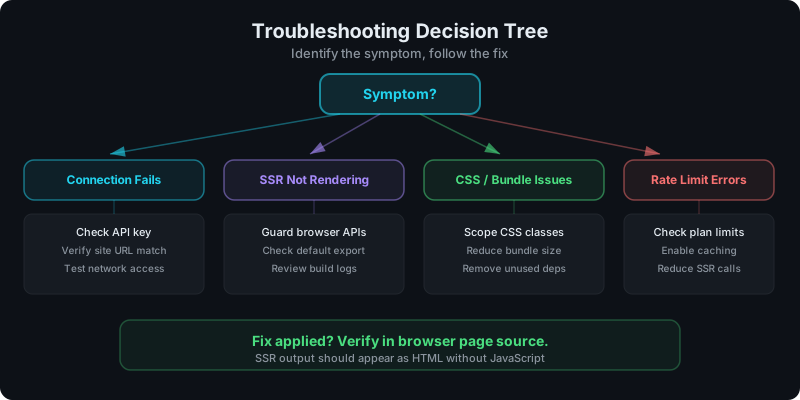
Direct answer: where should I start?
Check the symptom:
- Nothing renders at all → connection issue (API key, site URL)
- Content appears after JS but not in page source → SSR failure
- Content renders but looks wrong → CSS conflict
- Upload fails or build errors → bundle problem
- Intermittent failures or 429 errors → rate limit
Connection failures
Symptom: the block shows a blank space or an error message. No content renders on the front end.
Common causes and fixes:
- Invalid API key: verify your API key in the WP Render Blocks plugin settings. Regenerate it from your dashboard if needed.
- Site URL mismatch: the site URL registered in your WP Render Blocks account must match your WordPress site URL exactly, including protocol (http vs https) and trailing slashes.
- Firewall or hosting restrictions: some hosts block outbound API requests. Check if your server can reach the WP Render Blocks API endpoint. Test with a simple
wp_remote_getcall.
For initial setup steps: Getting Started with WP Render Blocks.
SSR not rendering
Symptom: the component works in the editor preview or appears after JavaScript loads, but the content is not in page source (view source shows an empty placeholder).
Common causes and fixes:
- Browser-only APIs in render: the most common SSR failure. If your component calls
window,document,localStorage, ornavigatorduring the render path, SSR will fail. Move those calls intouseEffector guard them with a browser check. - Missing default export: WP Render Blocks expects a single default export from your component. Named exports or multiple exports will cause the build to fail silently.
- Build errors: check the build logs in your WP Render Blocks dashboard. Failed builds mean no SSR output is available.
// Bad: breaks SSR
const width = window.innerWidth;

// Good: SSR-safe
const [width, setWidth] = useState(0);
useEffect(() => {
  setWidth(window.innerWidth);
}, []);
For SSR fundamentals: Server-Side Rendering (SSR) for WordPress: Why It Matters for SEO.
CSS conflicts
Symptom: the component renders but styles look broken, text overflows, or layout is wrong only on the live site (not in isolation).
Common causes and fixes:
- Global CSS collisions: your component's class names clash with the WordPress theme. Use scoped or utility-first CSS (Tailwind) instead of global class names like
.containeror.title. - Theme CSS overrides: WordPress themes often apply aggressive global resets. Inspect the element in DevTools to see which styles are winning.
- Missing styles: if your component relies on a CSS file that isn't included in the ZIP, styles won't load. Include all CSS within the component or use inline Tailwind classes.
Quick test: inspect the element in Chrome DevTools and look for crossed-out or overridden styles in the Styles panel.
Bundle too large
Symptom: upload fails with a size error, or the build takes too long and times out.
Common causes and fixes:
- node_modules in the ZIP: never include
node_modulesin your uploaded ZIP. WP Render Blocks installs dependencies from yourpackage.jsonduring the build. - Too many dependencies: AI-generated components often pull in libraries they don't actually need. Audit
package.jsonand remove unused packages. - Build artifacts included: don't include
dist/,.next/, or other build output folders. Upload source code only. - Plan limit: each pricing tier has a bundle size limit. Check your plan if you're hitting the cap.
For component preparation: From ZIP to WordPress: Publish a React Section That's SEO-Friendly.
Rate limit errors
Symptom: components work intermittently, or you see 429 (Too Many Requests) responses in your browser console or server logs.
Common causes and fixes:
- Exceeding plan render limits: each plan has a monthly render quota. Check your usage in the WP Render Blocks dashboard.
- No caching: if every page view triggers a fresh SSR render, you'll hit limits faster. Enable output caching so repeat requests serve cached HTML.
- Multiple sites on one plan: if you share components across many sites, aggregate traffic can exceed limits. Consider upgrading your plan or using the Agency tier.
For rate limiting details: Rate Limiting SSR APIs for WordPress: Best Practices.
Need help? Get started with WP Render Blocks and check the docs.
FAQ
How do I check build logs?
Log into your WP Render Blocks dashboard, navigate to the component, and check the build status. Failed builds show error details including which file or dependency caused the failure.
My component works locally but fails in WordPress. Why?
Local development usually runs CSR with a full browser environment. SSR runs without browser APIs. The most common gap is window or document usage that works locally but crashes during server-side rendering.
Can I roll back to a previous component version?
Yes. WP Render Blocks supports versioning. If a new upload causes issues, pin the previous version while you fix the problem. See: How Versioning Works for React Components in WordPress.
For a full walkthrough of the setup and publishing workflow, see React Components in WordPress with Full SEO Support.
Summary
When something goes wrong with WP Render Blocks:
- check connection settings first (API key, site URL)
- view page source to confirm SSR is working
- inspect CSS for conflicts with the WordPress theme
- audit your ZIP for size and unnecessary dependencies
- monitor rate limits in the dashboard
Most issues resolve by fixing browser API usage in the render path or cleaning up the uploaded ZIP.