
WP Render Blocks Plugin Setup Guide for WordPress
Getting the WP Render Blocks plugin installed and connected is the first step to rendering React components in WordPress. The process takes a few minutes and requires no PHP knowledge.
This guide covers the WordPress-side setup: downloading the plugin, installing it, entering your API key, and verifying the connection.
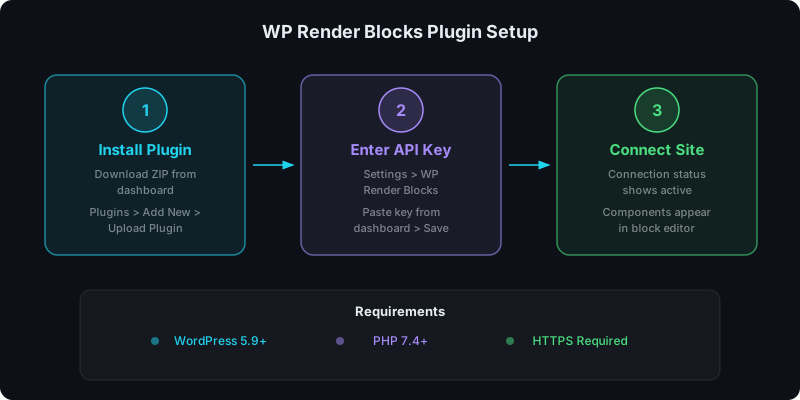
Direct answer: what are the setup steps?
- Download the plugin ZIP from your WP Render Blocks dashboard
- Install and activate the plugin in WordPress
- Enter your API key in the plugin settings
- Test the connection
That's it. Once connected, uploaded components appear as available Gutenberg blocks.
Step 1: Download the plugin
Log into the WP Render Blocks dashboard and navigate to the WordPress Plugin section. Download the latest plugin ZIP file.
The plugin is distributed as a standard WordPress plugin ZIP. It is not currently listed in the WordPress.org plugin directory, so you install it via upload.
Step 2: Install and activate
Option A: Upload via WordPress admin
- Go to Plugins > Add New > Upload Plugin
- Choose the downloaded ZIP file
- Click Install Now
- Click Activate
Option B: Upload via SFTP/SSH
- Extract the ZIP file
- Upload the extracted folder to
/wp-content/plugins/ - Go to Plugins in WordPress admin
- Find "WP Render Blocks" and click Activate
Either method works. The admin upload is faster for most users.
Step 3: Enter your API key
After activation:
- Go to Settings > WP Render Blocks in the WordPress admin sidebar
- Enter your API key from the WP Render Blocks dashboard
- Click Save
Each WordPress site should use its own API key. This enables per-site usage tracking, access control, and credential rotation.
If you manage multiple sites, generate a separate key for each one in the dashboard. See: How to Share React Components Across Multiple WordPress Sites.
Step 4: Test the connection
After saving the API key, the plugin settings page displays a connection status indicator. A successful connection confirms:
- the API key is valid
- the site can reach the WP Render Blocks API
- uploaded components will be available in the block editor
If the connection fails, see the troubleshooting section below or our full troubleshooting guide for detailed fixes.
Using components in Gutenberg
Once connected:
- Open the WordPress block editor on any page or post
- Click the block inserter (+ button)
- Search for "WP Render Blocks" or the component name
- Add the block and configure props in the sidebar
For the full Gutenberg workflow: How to Render React Components in WordPress Gutenberg.
Troubleshooting common issues
"Connection failed" after entering API key
Check the API key. Copy it again from the dashboard. Trailing spaces or line breaks can cause validation failures.
Check outbound connectivity. The plugin needs to reach the WP Render Blocks API over HTTPS. Some hosting environments restrict outbound HTTP requests. Contact your host if you suspect a firewall is blocking API calls.
Check PHP version. The plugin requires PHP 7.4 or higher. You can check your PHP version in Tools > Site Health > Info > Server in WordPress admin.
Components not appearing in the block editor
Verify the connection is active. Go to Settings > WP Render Blocks and confirm the status shows connected.
Check that components are uploaded. Log into the WP Render Blocks dashboard and confirm at least one component has been uploaded and built successfully.
Clear any caching. If you use a caching plugin or CDN, clear the cache. Some caching layers cache the block editor's asset list.
Plugin conflicts
WP Render Blocks registers standard Gutenberg blocks and should not conflict with most plugins. If you see editor errors after activation:
- Deactivate other plugins temporarily to isolate the conflict
- Check the browser console for JavaScript errors
- Verify WordPress is version 5.9 or higher
SSL certificate issues
The plugin communicates over HTTPS. If your server has an outdated or misconfigured SSL certificate bundle, API calls may fail silently. Ensure your server's CA certificates are up to date.
Requirements summary
| Requirement | Minimum |
|---|---|
| WordPress | 5.9+ |
| PHP | 7.4+ |
| HTTPS | Required |
| Outbound HTTP | Required |
Ready to start? Create your free account.
FAQ
Can I use the plugin on a local development site?
Yes. The plugin works on any WordPress installation that can reach the WP Render Blocks API over HTTPS. Local environments using tools like LocalWP, DDEV, or Lando work as long as outbound HTTPS is not blocked.
How do I update the plugin?
Download the latest version from the WP Render Blocks dashboard and install it over the existing version using the same upload process. Your API key and settings are preserved during updates.
Is the plugin compatible with page builders like Elementor?
WP Render Blocks is designed for the Gutenberg block editor. Page builders that support shortcodes or custom HTML blocks may work as a workaround, but the primary integration is through Gutenberg.
For the complete getting started workflow including component upload: Getting Started with WP Render Blocks.
See the launch announcement for an overview of all features.
For an overview of the full workflow, see how to use React components in WordPress with SEO support.
Summary
Plugin setup is three steps:
- install the plugin via upload or SFTP
- enter your API key from the WP Render Blocks dashboard
- verify the connection is active
Once connected, your uploaded React components are available as Gutenberg blocks. No PHP code, no build tooling, no server configuration needed on the WordPress side.